Section 1: Prerequisites
- DashDraft GUI App: Installed and currently showing a green Running status badge.
- Claude Desktop: Installed on your local machine (download free at claude.ai/download).
Section 2: Using the GUI Setup Helper
The GUI app includes a built-in helper card designed to automate config file lookups and provide copy-paste shortcuts.
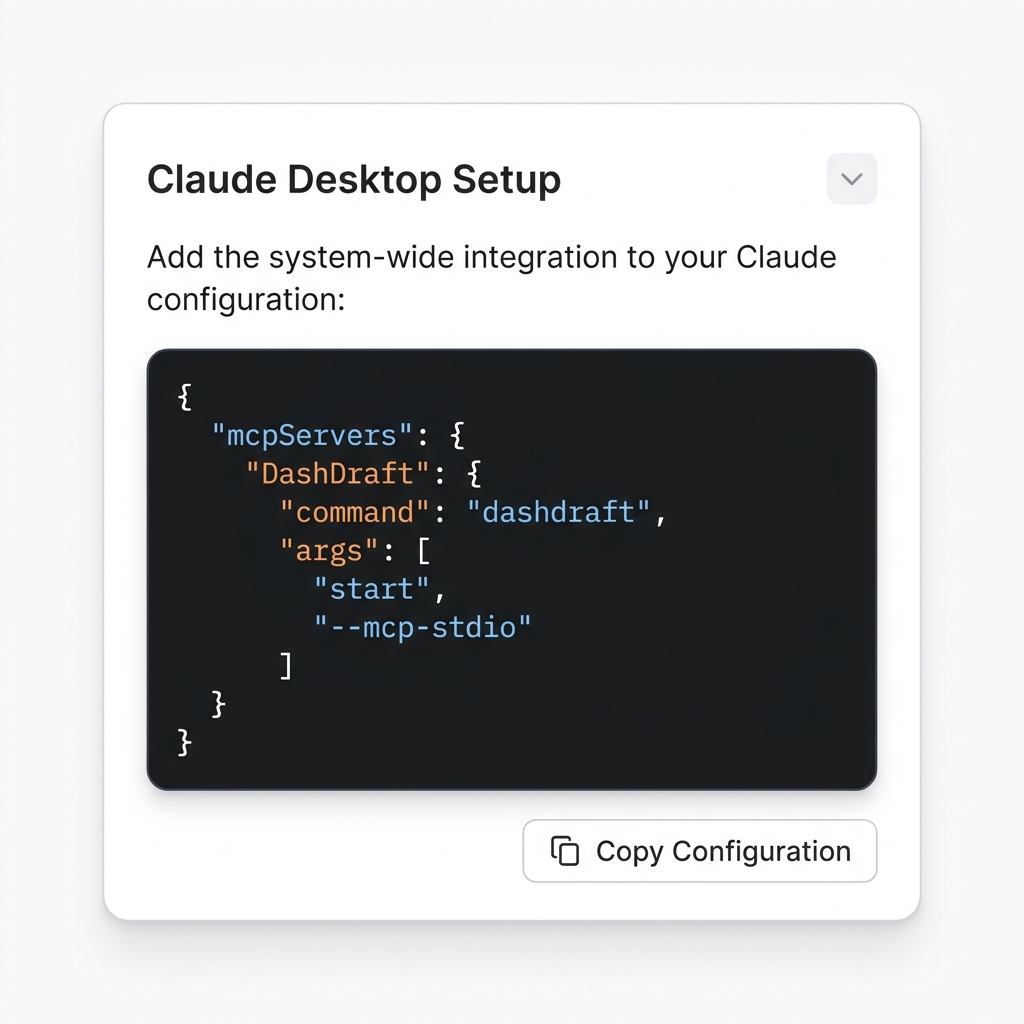
- Expand the Setup Section: Launch your DashDraft GUI App, scroll down to the Claude Desktop Setup card, and click to expand it.
- Copy the Config JSON: Inside the expanded helper, click the blue Copy Config button. This copies the exact JSON structure required by Claude:json
{ "mcpServers": { "DashDraft": { "command": "dashdraft", "args": ["start", "--mcp-stdio"] } } } - Open the Claude config: Open Claude Desktop, and go to Settings → Developer → Edit config.
- Edit the Config File: Paste the copied block into the file. If you already have other MCP servers active, add the
"DashDraft"object inside the existing"mcpServers"map. - Save and Close: Save the changes in your text editor and close the file.
- Restart Claude Desktop: Fully quit Claude Desktop (make sure it is not hidden in your system tray or menu bar) and reopen it.
Section 3: Verifying the Connection
To verify that Claude Desktop has successfully connected to your local DashDraft service:
- Launch Claude Desktop.
- Start a brand new conversation.
- Click the Attachment (+) icon next to the chat input field.
- In the menu, hover over Connectors. You should see dashdraft listed.
- Make sure the toggle switch next to dashdraft is turned on (blue).
- Test the query loop by asking:
"What tables are in my active workspace?"
- Claude will run the tool locally, fetch workspace tables, and describe them directly inside your chat window without any data leaving your computer.
Section 4: Troubleshooting
If Claude Desktop doesn't display the hammer icon or fails to connect:
- Verify Service Status: Check that the DashDraft GUI App is active and showing a green Running indicator in the Core Service section.
- Validate JSON Syntax: If Claude fails to load, ensure your
claude_desktop_config.jsonis valid. You can paste the contents of your file into a free validator like jsonlint.com to verify formatting. - Hard Restart Claude: Make sure you fully exit Claude. On macOS, click Claude > Quit Claude in the top menu bar. On Windows, right-click the Claude icon in the system tray and select exit.
- Advanced configurations: If you prefer to manually configure or run the server in developer stdio modes, check out the Advanced: Using the CLI documentation.