System requirements
- macOS 10.15 (Catalina) or later — Intel or Apple Silicon
- Windows 10 or later — 64-bit
- Linux — x64 or ARM64, glibc 2.28+
- ~120 MB free disk space
Install
macOS / Linux
curl -fsSL https://dashdraft.app/get/install.sh | bashWindows (PowerShell)
irm https://dashdraft.app/get/install.ps1 | iexThe installer downloads the latest binary bundle, places the CLI command on your PATH, and registers the GUI App in your applications directory.
What you get after installation
The installer sets up two distinct ways to manage your local DashDraft services, depending on your preferred workflow:
✨ GUI Control Center
An intuitive, point-and-click interface designed for business owners. Start services, view URLs, configure Claude Desktop, and manage ChatGPT cloud tunnels without using a terminal.
💻 Advanced CLI Tool
A developer-focused command-line tool. Seamlessly integrate DashDraft into system startup scripts, view raw server stdout, or run background daemons with simple shell commands.
Note: Both components connect to the exact same background service. You can use either, or both interchangeably!
Launching the GUI App
Once the install script finishes running, you can launch the DashDraft GUI Control Center immediately:
- macOS: Open your Applications folder or use Spotlight (Cmd + Space), and launch DashDraft.
- Windows: Press the Start Key, search for DashDraft, or double-click the DashDraft shortcut created on your Desktop.
- Linux: Launch DashDraft from your desktop applications menu, or open a terminal and run
dashdraft-gui.
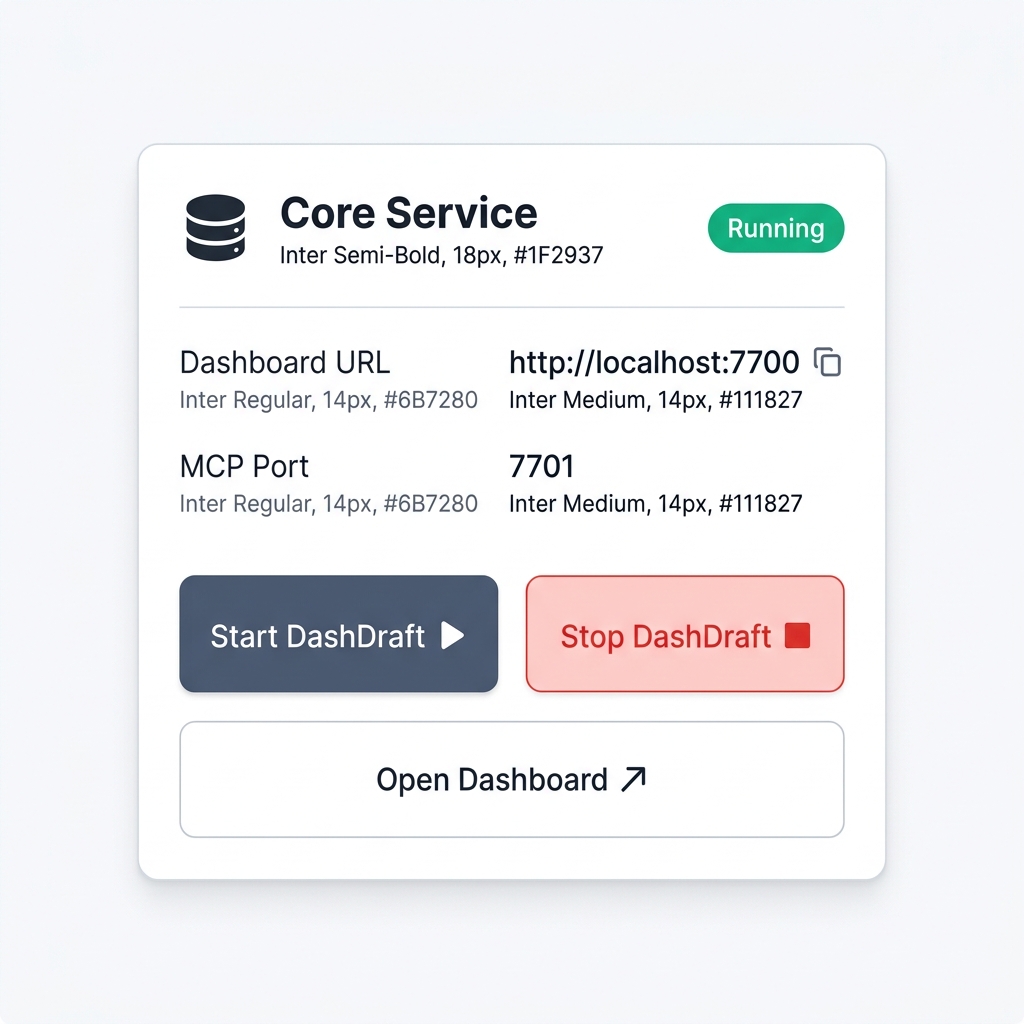
GUI Control Center Preview
Verify the installation
To ensure everything is working correctly, simply launch the DashDraft GUI App.
- Open the GUI App on your operating system.
- Find the Core Service card at the top.
- Verify that the service is active. You should see a green Running status indicator.
dashdraft --versionUsing the CLI (Optional, for Advanced Users)
If you're a developer or advanced user who prefers shell-based commands over point-and-click GUIs, all core tasks can still be managed in the terminal.
Check out our Advanced: Using the CLI guide to learn about standard syntax, parameters, stdio routing, and ngrok automation.